Seqera Compute
Seqera Compute enables you to run pipelines and Studio sessions in Seqera Cloud in a fully managed and optimized AWS environment. Seqera automatically provisions and manages all the underlying resources, including AWS accounts, credentials, roles, compute environments, and S3 storage buckets, requiring minimal user configuration. Using prepaid credits enables control and visibility of the compute spend in each of your organization's workspaces.
Seqera Compute environments can also read from and write to S3 buckets in your own AWS account. See Use S3 buckets in your own AWS account.
Manage Seqera Compute credits
Seqera Compute uses prepaid credits with real-time billing. Credits are deducted as tasks complete. See Billing and credit management for details.
Default limits
Compute environment limits
Seqera Compute environments automatically provision cloud resources when you launch pipelines or Studios. The maximum resources that can be allocated to a Seqera Compute environment are:
- 48 vCPUs
- 192 GiB memory
Running workflows that request resources exceeding these limits will result in errors.
Workspace limits
Seqera Compute has default workspace limits on compute environments, and organization limits on data storage and CPU cores.
| Basic | Pro | |
|---|---|---|
| Cloud storage | 25 GB | Unlimited |
| Compute environments per workspace | 5 | 20 |
| Total CPU cores | 100 | 1000 |
Contact us to discuss custom limits for Pro, academic, or evaluation licenses.
Create a Seqera Compute environment
-
In a workspace with Seqera Compute enabled, select Compute environments > New environment.
-
Enter a descriptive name for this environment, such as Seqera Compute 1 (eu-west-1).
-
Under Platform, select Seqera Compute.
-
Select a target execution Region.
infoSeqera Compute is available in the following AWS regions:
Americas Europe Asia Pacific Middle East & Africa us-east-1 (Northern Virginia, USA) eu-central-1 (Frankfurt, Germany) ap-east-1 (Hong Kong) af-south-1 (Cape Town, South Africa) us-east-2 (Ohio, USA) eu-north-1 (Stockholm, Sweden) ap-northeast-1 (Tokyo, Japan) me-south-1 (Bahrain) us-west-1 (Northern California, USA) eu-south-1 (Milan, Italy) ap-northeast-2 (Seoul, South Korea) us-west-2 (Oregon, USA) eu-west-1 (Ireland) ap-northeast-3 (Osaka, Japan) ca-central-1 (Central, Canada) eu-west-2 (London, UK) ap-south-1 (Mumbai, India) sa-east-1 (São Paulo, Brazil) eu-west-3 (Paris, France) ap-southeast-1 (Singapore) ap-southeast-2 (Sydney, Australia) ap-southeast-3 (Jakarta, Indonesia) -
Configure any advanced options described in the next section, as needed.
-
Select Add to complete the Seqera Compute environment configuration and return to the compute environments list. It will take a few seconds for the compute environment resources to be created before you are ready to launch pipelines or add studios.
See Launch pipelines to start executing workflows in your Seqera Compute environment.
Advanced options (optional)
-
Toggle Automatic data retention policy. When enabled (default), intermediary files are deleted after 28 days to manage cloud storage usage and cost.
-
Enter a relative Work directory path to be appended to the S3 storage bucket Seqera creates for this compute environment.
-
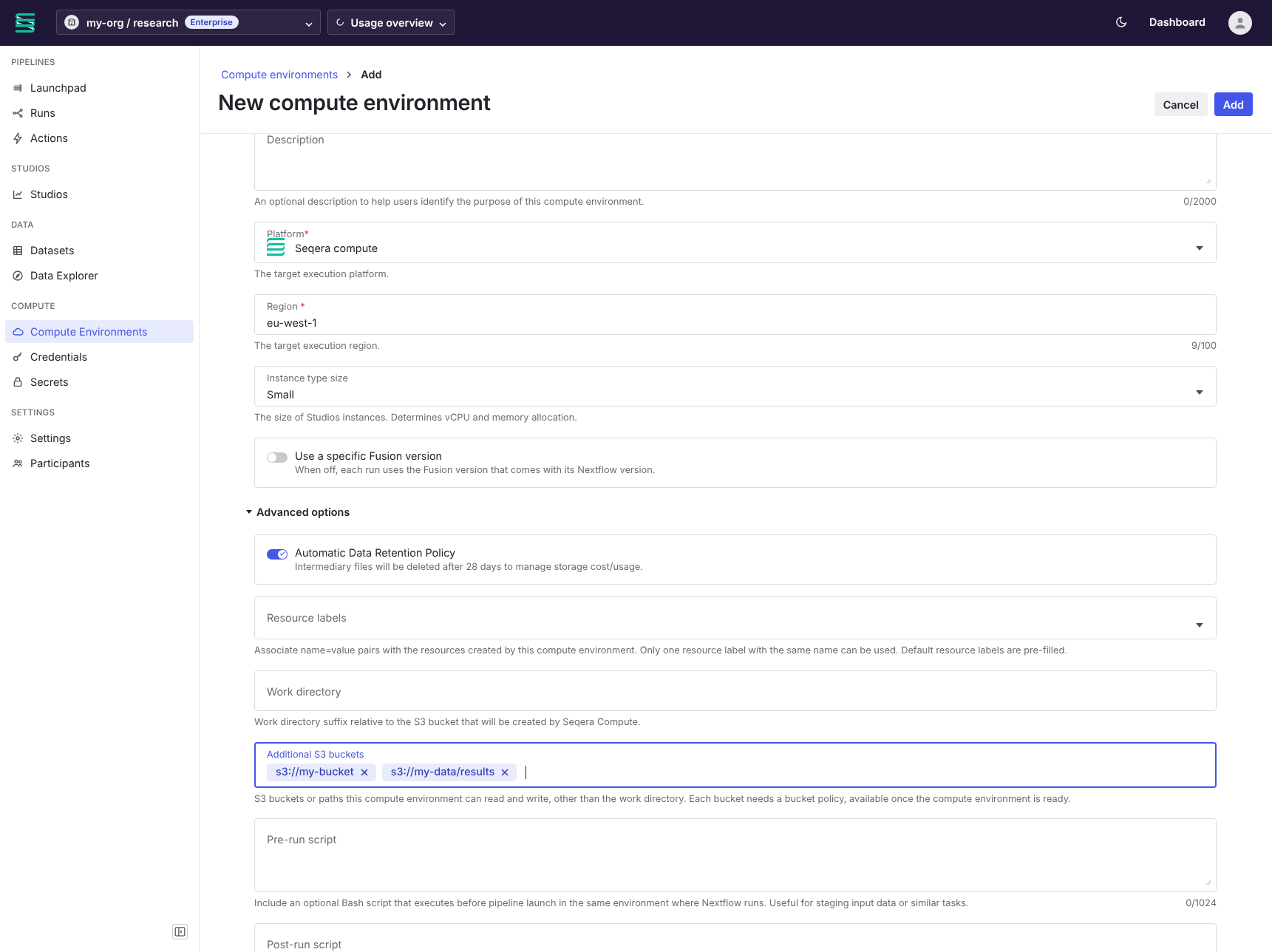
Enter any Additional S3 buckets in your own AWS account as
s3://bucketors3://bucket/path. Pipelines and Studio sessions in this compute environment can then read and write them. Each bucket also needs a bucket policy, which Seqera Platform generates once the compute environment is available. See Use S3 buckets in your own AWS account.cautionYou cannot add, remove, or change additional S3 buckets after you create the compute environment. To change the list, create a new compute environment.
-
Enter pre- or post-run Bash scripts that execute before or after the Nextflow pipeline execution in your environment.
-
Enter Global Nextflow configuration settings for all pipeline runs launched with this environment. Values defined here are pre-filled in the Nextflow config file field in the pipeline launch form. These values can be overridden at pipeline launch.
infoConfiguration settings in this field override the same values in the pipeline repository
nextflow.configfile. See Nextflow config file for more information on configuration priority. -
Under Environment variables, add each variable with a Name, Value, and Target Environment:
- Head job: Adds the variable to the Nextflow head job container, which evaluates
nextflow.configand submits tasks to the compute backend. Use this target for variables that Nextflow or its plugins read, such asNXF_OPTS,NXF_JVM_ARGS,NXF_PLUGINS_DEFAULT, or proxy settings the head node uses to reach external services. - Compute job: Adds the variable to the worker containers that run individual pipeline tasks. Use this target for variables your pipeline tools read, such as
OPENAI_API_KEYfor a process that calls the OpenAI API, registry credentials needed inside the task container, or tool-specific settings likeJAVA_HOME. - Head and Compute jobs: Adds the variable to both the head job and the compute jobs. Use this target for values needed in both places, such as an HTTP proxy used by both Nextflow and task tools, or a credential needed in both the head job and individual compute tasks.
noteFor sensitive values such as API keys and tokens, use pipeline secrets instead of custom environment variables. Custom environment variables are stored in the compute environment configuration and cannot be edited after creation. To rotate a value, recreate the compute environment.
- Head job: Adds the variable to the Nextflow head job container, which evaluates
Use S3 buckets in your own AWS account
Every Seqera Compute environment reads and writes an S3 bucket that Seqera creates and manages for it (the managed bucket). The compute environment work directory is always inside this bucket. To read input data from buckets in your own AWS account, and publish results to them, list the buckets as Additional S3 buckets when you create the compute environment. Then apply the bucket policy that Seqera Platform generates to each bucket.
When you create the compute environment, Seqera creates AWS Identity and Access Management (IAM) roles for it in the Seqera-managed AWS account. Seqera grants those roles read and write access to each additional bucket. Pipeline head jobs, tasks, Fusion, and Studio sessions run with these roles. Runs and sessions need no credentials from your account. Because your buckets live in a different AWS account, each bucket also needs a bucket policy in your AWS account that trusts the compute environment roles.
Seqera never modifies or deletes your buckets. When you delete the compute environment, Seqera deletes only the managed bucket.
You need the following:
- An S3 bucket in your AWS account, and permission to edit its bucket policy.
- Permission to edit the key policy, if the bucket uses server-side encryption with a customer-managed AWS Key Management Service (KMS) key (SSE-KMS).
- Optional: AWS credentials from your own AWS account, added to the workspace, to browse the bucket in Data Explorer or mount it in a Studio session. Seqera Platform uses these credentials for Data Explorer and data links only. Pipeline runs and Studio sessions access the bucket with the compute environment roles.
Add buckets to the compute environment
Add buckets when you create the compute environment. You cannot change the list afterwards.
- Start creating a Seqera Compute environment.
- Under Advanced options, in Additional S3 buckets, enter each bucket or path and press Enter, for example
s3://my-bucketors3://my-bucket/results. - Select Add.
Each entry must follow this format:
s3://bucketors3://bucket/path. No wildcards (*,?), quotes, spaces, or$.- The bucket name must follow the S3 bucket naming rules: 3 to 63 characters, with lowercase letters, numbers, dots, and hyphens.
- A path can contain letters, numbers, and the characters
! _ . ( ) / - = + @ ,. Partitioned prefixes such asyear=2024are valid. - Up to 128 characters per entry, and up to 10 entries per compute environment. Seqera Platform ignores duplicate entries.
The form shows an error next to the field and does not add an invalid entry. Through the API, an invalid entry fails the request.
Apply the bucket policy
Seqera Platform generates one bucket policy per bucket. Paths in the same bucket share one policy. The policies become available once the compute environment status is Available:
- In the Compute environments list, select the compute environment to open its details page.
- Under Advanced options, go to Bucket policy, below Additional S3 buckets. If the compute environment is still creating, select Refresh until the policy appears.
- If you listed more than one bucket, select the bucket from S3 bucket name.
- Copy the policy.
- In your AWS account, open the bucket in the S3 console, select Permissions > Bucket policy > Edit, and paste the policy. If the bucket already has a policy, add the two statements to the existing
Statementarray. - Repeat for each additional bucket.
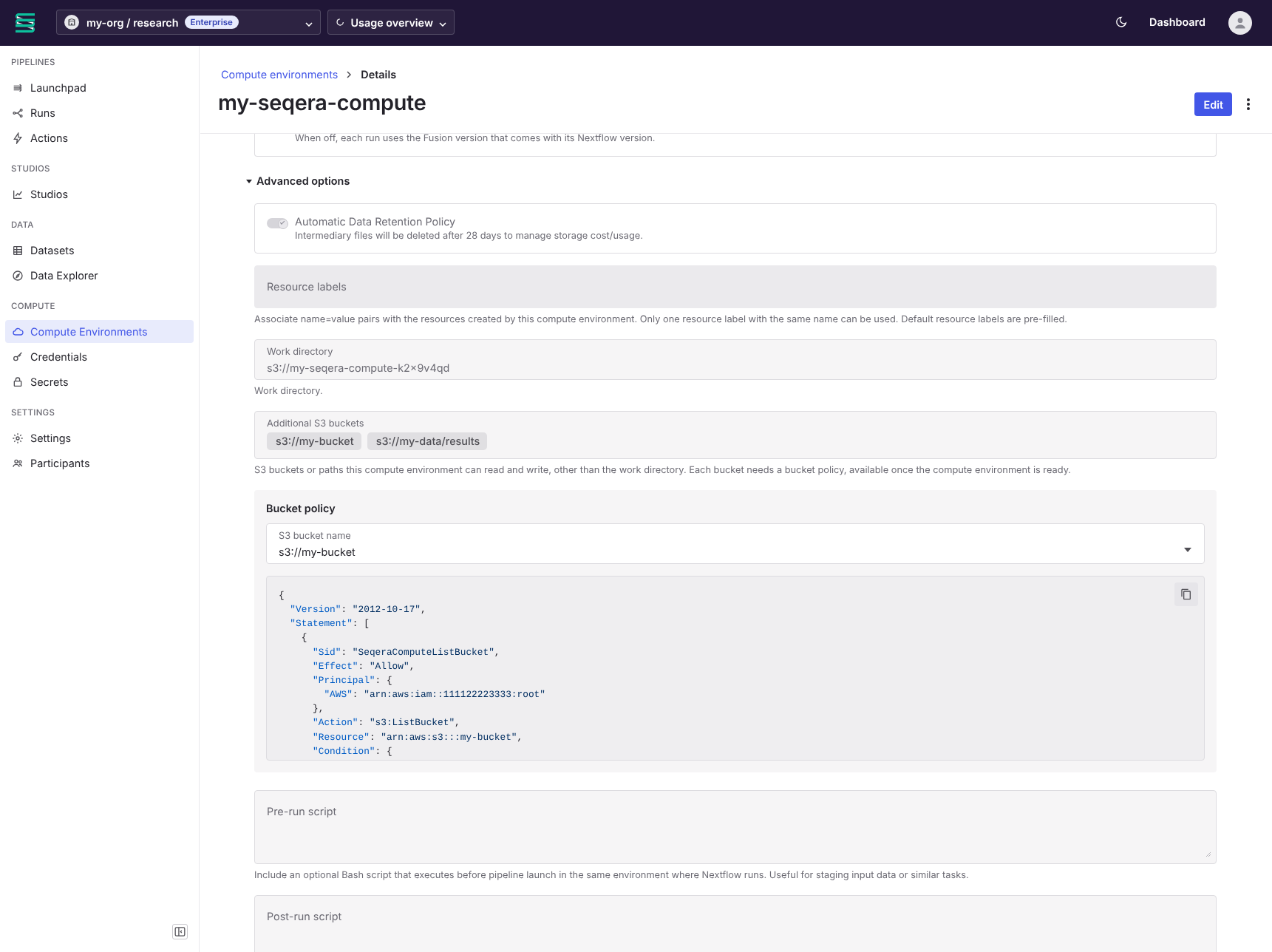
If the compute environment creation fails, the Bucket policy section is not shown.
The generated policy looks like this. 111122223333 is the AWS account that Seqera manages for your workspace, and the two role Amazon Resource Names (ARNs) are the roles of this compute environment:
{
  "Version": "2012-10-17",
  "Statement": [
    {
      "Sid": "SeqeraComputeListBucket",
      "Effect": "Allow",
      "Principal": {
        "AWS": "arn:aws:iam::111122223333:root"
      },
      "Action": "s3:ListBucket",
      "Resource": "arn:aws:s3:::my-bucket",
      "Condition": {
        "ArnEquals": {
          "aws:PrincipalArn": [
            "arn:aws:iam::111122223333:role/TowerForge-<COMPUTE_ENV_ID>-InstanceRole",
            "arn:aws:iam::111122223333:role/TowerForge-<COMPUTE_ENV_ID>-InstanceRoleCloud"
          ]
        }
      }
    },
    {
      "Sid": "SeqeraComputeObjectAccess",
      "Effect": "Allow",
      "Principal": {
        "AWS": "arn:aws:iam::111122223333:root"
      },
      "Action": [
        "s3:*Object",
        "s3:AbortMultipartUpload",
        "s3:PutObjectTagging",
        "s3:GetObjectTagging"
      ],
      "Resource": [
        "arn:aws:s3:::my-bucket/*"
      ],
      "Condition": {
        "ArnEquals": {
          "aws:PrincipalArn": [
            "arn:aws:iam::111122223333:role/TowerForge-<COMPUTE_ENV_ID>-InstanceRole",
            "arn:aws:iam::111122223333:role/TowerForge-<COMPUTE_ENV_ID>-InstanceRoleCloud"
          ]
        }
      }
    }
  ]
}
- The
Principalis the Seqera-managed AWS account. Theaws:PrincipalArncondition narrows it to the two roles of this compute environment. Pipeline head jobs, tasks, and Fusion use theInstanceRole. Studio sessions use theInstanceRoleCloud. Keep the condition as generated, because trusting the whole account would let other compute environments read the bucket. - The
Actionlist grantss3:ListBucketon the bucket, and object read, write, delete, multipart upload, and tagging actions on the bucket or path. For a path entry such ass3://my-bucket/results, the object resource isarn:aws:s3:::my-bucket/results/*. Only objects under that path are reachable. - The policy lets the roles list the whole bucket (object key names only), even for a path entry. Fusion needs this to walk a path and for operations at the bucket root.
Each compute environment has its own roles and needs its own statements in the bucket policy. When you replace a compute environment, update the bucket policy with the roles of the new one.
Grant access to an SSE-KMS bucket
If the bucket uses SSE-KMS, the key policy must also grant the same roles kms:Decrypt and kms:GenerateDataKey*. Add a statement like the following to the key policy, with the same account and role ARNs as the bucket policy:
{
  "Sid": "SeqeraComputeKeyAccess",
  "Effect": "Allow",
  "Principal": {
    "AWS": "arn:aws:iam::111122223333:root"
  },
  "Action": [
    "kms:Decrypt",
    "kms:GenerateDataKey*"
  ],
  "Resource": "*",
  "Condition": {
    "ArnEquals": {
      "aws:PrincipalArn": [
        "arn:aws:iam::111122223333:role/TowerForge-<COMPUTE_ENV_ID>-InstanceRole",
        "arn:aws:iam::111122223333:role/TowerForge-<COMPUTE_ENV_ID>-InstanceRoleCloud"
      ]
    }
  }
}
Pipelines can read and write SSE-KMS buckets. Studio sessions can read SSE-KMS data but cannot write it.
Use the buckets in pipelines and Studios
Once the bucket policy is in place, pipelines and Studio sessions in the compute environment can read from and write to the additional buckets.
Pipelines: Use the bucket or path as a pipeline input or as the output directory, for example --outdir s3://my-bucket/results. The work directory stays in the managed bucket. For a path entry, only objects under the path are accessible.
Studios: In the Studio Mount data dialog, you can select a data link to an additional bucket, even if Data Explorer found it with your own AWS credentials. The Studio mounts the data read-write. The entry must cover the whole data link. Either the entry is the bucket of the data link, or the data link sits under the entry path. With s3://my-bucket/results listed, a data link to s3://my-bucket/results or below is selectable, but the bucket-root data link s3://my-bucket is not. To mount a path, create a custom data link at that path in Data Explorer. Only AWS S3 data links match. An S3-compatible data link (for example, MinIO) with the same bucket name is a different store.
Files that a Studio session writes to a mounted additional bucket might not appear in S3 until you stop the session.
For AccessDenied errors on an additional bucket, see AWS troubleshooting. For a data link that stays disabled in the Mount data dialog, see Studios troubleshooting.
Limitations
| Limitation | Details |
|---|---|
| Set at creation only | You cannot add, remove, or change additional S3 buckets after you create the compute environment, and you cannot add them to an existing compute environment. Create a new compute environment to change the list. |
| Up to 10 entries | At most 10 additional buckets or paths per compute environment, each up to 128 characters. |
| Work directory | The work directory must stay in the managed bucket. You cannot use an additional bucket as the work directory. |
| Path scope | Pipelines and the bucket policy scope access to the path. The Studio Mount data dialog only accepts data links at or under the path. |
| Bucket policy required | Without the bucket policy, AWS denies access. Seqera Platform does not check the bucket policy, or the existence or region of the bucket, when you create the compute environment or launch a run. An AccessDenied error surfaces at run time. |
| SSE-KMS buckets | The key policy must grant the compute environment roles kms:Decrypt and kms:GenerateDataKey*. Studio sessions can read, but not write, SSE-KMS data. |
| Clients | Available in the web UI and the API. The Seqera Platform CLI (tw) and the Seqera Model Context Protocol (MCP) server do not support additional buckets on Seqera Compute environments. |
Costs
- AWS bills storage in your buckets to your account. Seqera Compute does not bill or monitor it. The cloud storage limit and the Automatic data retention policy only apply to the managed bucket.
- Runs still incur data transfer costs, such as cross-region transfer, in the compute environment. Use buckets in the compute environment region where possible.
API fields
Use these fields to manage additional buckets through the Seqera Platform API:
allowBucketsin theconfigof a Seqera Compute environment, in the create request and the describe response (API version 1.246.0 and later). Up to 10 entries ofs3://bucket[/path], 128 characters each.bucketPoliciesin the compute environment describe response (API version 1.247.0 and later): a read-only map ofs3://bucketto the bucket policy JSON. Present only for Seqera Compute environments with additional buckets, once their roles exist.allowBucketson compute environment list entries and on the compute environment object in the Studio describe response (API version 1.250.0 and later), read-only.