Add data
Make your pipeline input data available in your workspace, so participants can select it when they launch a pipeline.
Most pipelines take a samplesheet as input. Each samplesheet row lists a sample, the paths to its files (such as FASTQ files), and other sample details. Platform gives you two ways to make samplesheets and other data available:
- Data Explorer browses cloud storage in Amazon S3, Azure Blob Storage, Google Cloud Storage, and S3-compatible storage.
- Datasets stores CSV and TSV samplesheets in your workspace.
You need the following:
- An organization and workspace. See Set up your workspace.
- Workspace credentials for the cloud provider that hosts your data. Public buckets don't need credentials.
Add data with Data Explorer
Data Explorer lets participants browse, preview, and download files in cloud storage without the cloud provider console or CLI.
Add a data repository
Data Explorer automatically lists the buckets that your workspace credentials can access. To add another bucket, a public bucket, or a folder within a bucket:
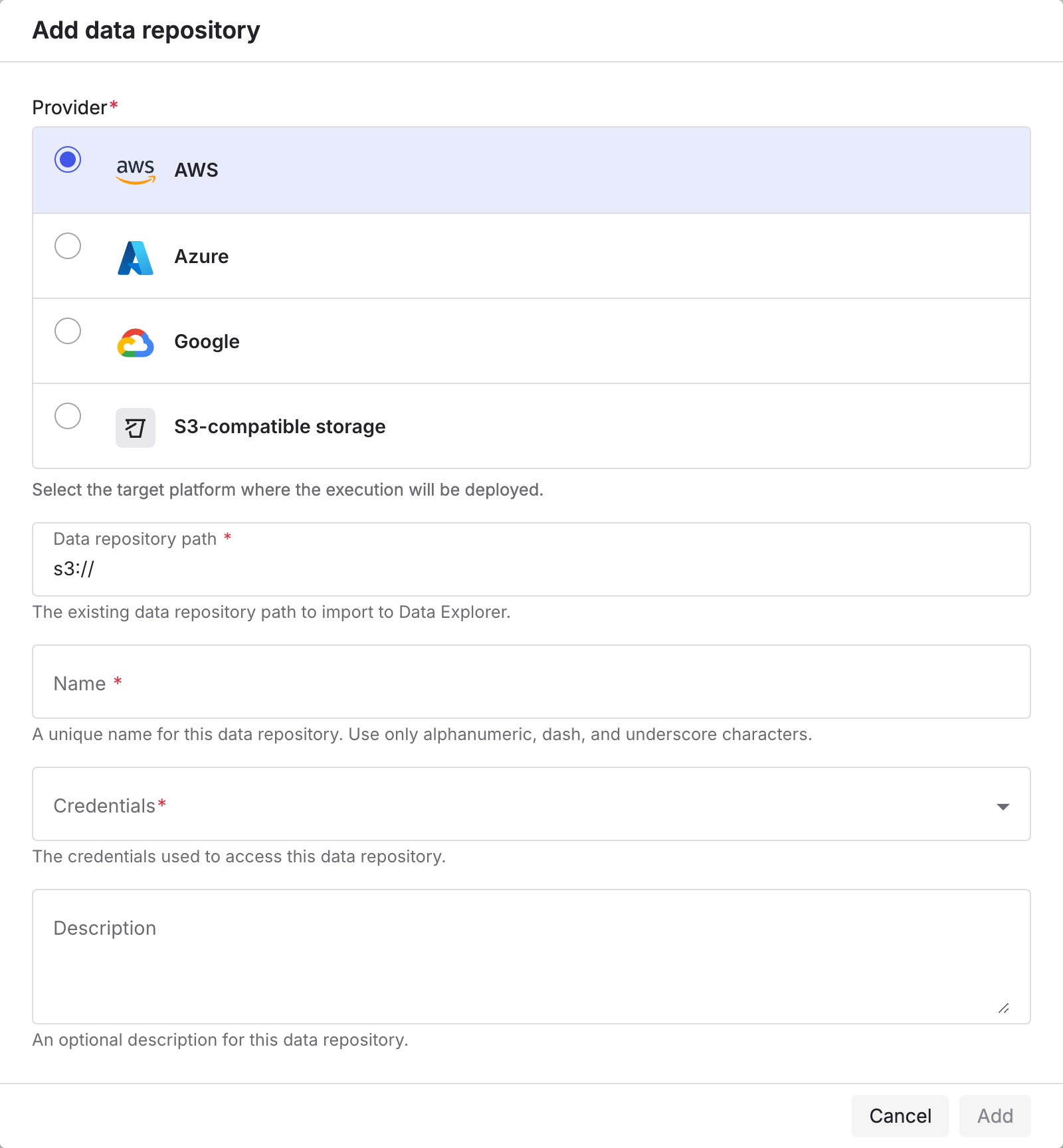
- In your workspace, select Data Explorer, then select Add data repository.
- Enter the repository details:
- Provider: The cloud provider.
- Data repository path: The bucket or folder path, such as
s3://my-bucket/samplesheets. - Name: A unique name for the repository.
- Credentials: The workspace credentials that can access the repository. For a public bucket, select Public.
- Optional: Description.
- Select Add.
Public datasets you can add with Public credentials include:
- The Cancer Genome Atlas (TCGA)
- 1000 Genomes Project
- NCBI SRA
- Genome in a Bottle Consortium
- Genome Aggregation Database (gnomAD)
Browse a data repository
Use Data Explorer to find input files and check pipeline outputs:
- Browse contents: Select a repository name to list its folders and files, with each file's type, size, and path.
- View details: Select the information icon next to a repository to view its provider, path, and credentials.
- Preview a file: Select a file to open a preview. Select Download to save it.
For an example, see Browse the results in Data Explorer.
See Data Explorer for uploads, permissions, and other options.
Add data with datasets
A dataset is a CSV or TSV file stored in your workspace. Participants can select it as pipeline input at launch. A dataset holds the paths to your data, not the data itself. Keep the data files in cloud storage or on a shared file system that your compute environment can reach.
Example samplesheet
The nf-core/rnaseq test samplesheet lists small, sub-sampled FASTQ files from a yeast RNA-seq experiment. Download samplesheet_test.csv to try it:
| sample | fastq_1 | fastq_2 | strandedness |
|---|---|---|---|
| WT_REP1 | .../SRR6357070_1.fastq.gz | .../SRR6357070_2.fastq.gz | auto |
| WT_REP1 | .../SRR6357071_1.fastq.gz | .../SRR6357071_2.fastq.gz | auto |
| WT_REP2 | .../SRR6357072_1.fastq.gz | .../SRR6357072_2.fastq.gz | reverse |
| RAP1_UNINDUCED_REP1 | .../SRR6357073_1.fastq.gz | reverse | |
| RAP1_UNINDUCED_REP2 | .../SRR6357074_1.fastq.gz | reverse | |
| RAP1_UNINDUCED_REP2 | .../SRR6357075_1.fastq.gz | reverse | |
| RAP1_IAA_30M_REP1 | .../SRR6357076_1.fastq.gz | .../SRR6357076_2.fastq.gz | reverse |
The FASTQ files are in the nf-core test-datasets repository. Samples with two rows, such as WT_REP1, come from more than one sequencing run. The pipeline merges them.
Add a dataset
To upload a samplesheet as a dataset:
- In your workspace, select Datasets.
- Select Add dataset, then select Upload file.
- Enter a Name, such as
nf-core-rnaseq-test, and an optional Description. - Drag your CSV or TSV file into the upload area, or select Upload file. Files can be up to 10 MB.
- If the first row of the file holds column names, select Set first row as header.
- Select Add.
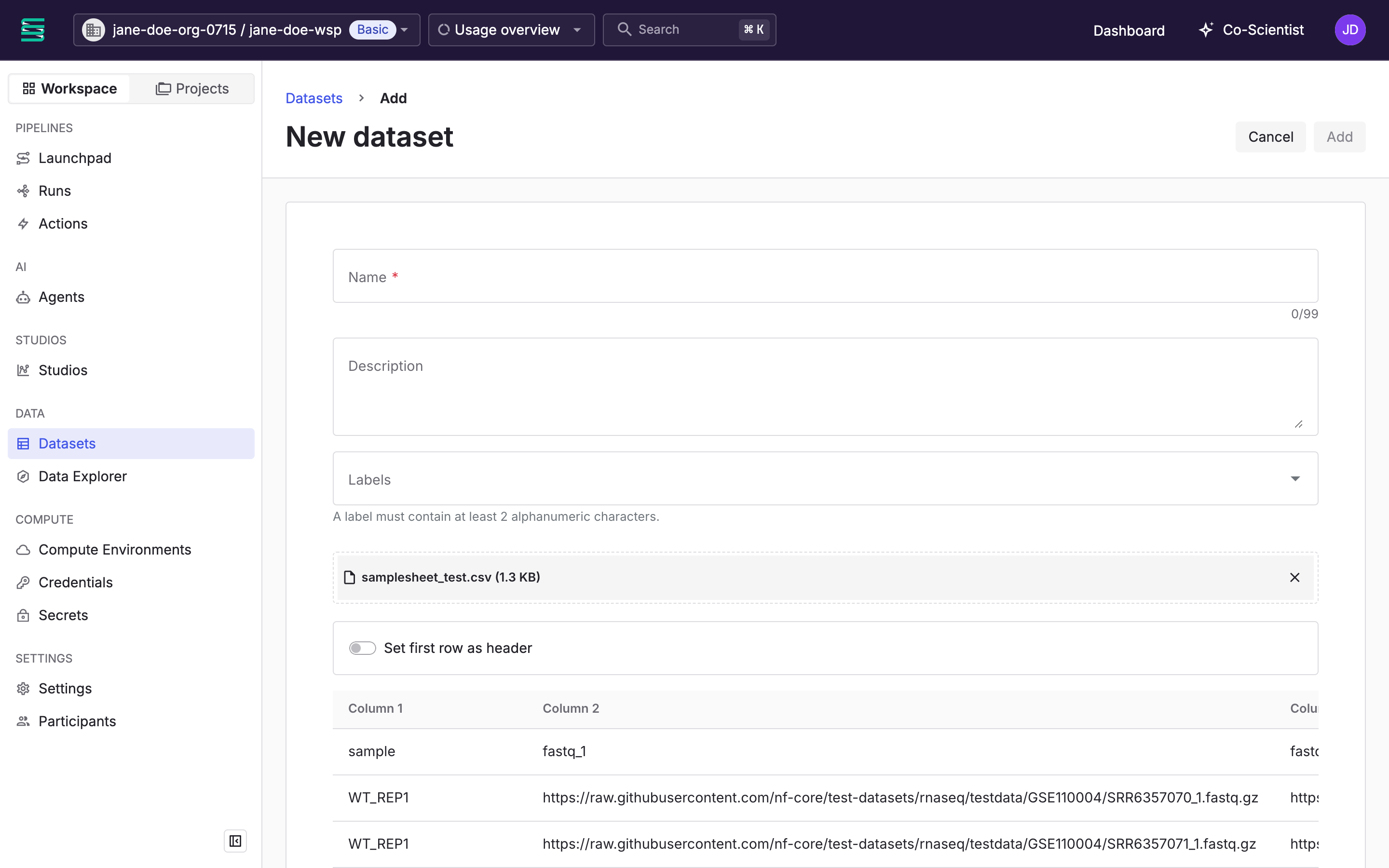
To link a file hosted elsewhere instead, select Link to URL. See Datasets for linked datasets and dataset versions.
Next steps
Your pipeline input is ready:
- Launch a pipeline with your dataset as input.