Launch pipelines
Launch a pipeline from your workspace Launchpad and set its run parameters, using nf-core/rnaseq as the example.
From the Launchpad in every workspace, you can create and share Nextflow pipelines that run on any supported infrastructure, including all public clouds and most HPC schedulers. A Launchpad pipeline consists of a preconfigured workflow Git repository, compute environment, and launch parameters.
You need the following:
- An organization and workspace. See Set up your workspace.
- A workspace compute environment for your cloud or HPC compute infrastructure.
- A pipeline added to your workspace.
- Pipeline input data added to your workspace.
Launch a pipeline
Navigate to the Launchpad and select Launch next to your pipeline to open the launch form.
The launch form consists of General config, Run parameters, and Advanced options sections to specify your run parameters before execution, and an execution summary. Use section headings or select the Previous and Next buttons at the bottom of the page to navigate between sections.
Nextflow parameter schema
The launch form configures the pipeline run. Platform renders the pipeline parameters in this form from a pipeline schema file in the root of the pipeline Git repository. nextflow_schema.json is a JSON-based schema that describes pipeline parameters. Pipeline developers use it to adapt their in-house Nextflow pipelines to run in Platform.
See Best Practices for Deploying Pipelines with the Seqera Platform to learn how to build the parameter schema for any Nextflow pipeline automatically with tooling maintained by the nf-core community.
General config
The General config section sets the pipeline version, compute environment, and work directory for the run:
- Pipeline to launch: The pipeline Git repository name or URL. For saved pipelines, this is prefilled and cannot be edited.
- Version name: The version selected as the default for this pipeline.
- Version ID: The ID of the pipeline version.
- Revision: A valid repository commit ID, tag, or branch name. Determines the version of the pipeline to launch.
- Commit ID: Pin pipeline revision to the most recent HEAD commit ID. If no commit ID is pinned, the latest revision of the repository branch or tag is used.
- Pull latest: Fetch the most recent HEAD commit ID of the pipeline revision at launch time. Unpins the Commit ID, if set.
info
See Git revision management for more information on Commit ID, Pull latest, and Revision behavior.
- Main script: The script file to execute (default:
main.nf). Config profiles suggestions may update when this field changes. - Config profiles: One or more configuration profile names to use for the execution.
- Workflow run name: An identifier for the run, pre-filled with a random name. This can be customized.
- Labels: Assign new or existing labels to the run.
- Compute environment: Select an existing workspace compute environment.
- Work directory: The (cloud or local) file storage path where pipeline scratch data is stored. If you specify only a cloud bucket location, Platform creates a scratch subfolder.
note
The credentials associated with the compute environment must have access to the work directory.
- Schema: The schema to validate pipeline parameters and prevent runtime failures.
- Repository default: The default schema provided by the pipeline repository.
- Repository path: A schema at a specific path in the repository.
- Seqera Platform schema: A schema stored in Seqera Platform.
Run parameters
There are three ways to enter Run parameters prior to launch:
- The Input form view displays form fields to enter text or select attributes from lists, and browse input and output locations with Data Explorer.
- The Config view displays raw configuration text that you can edit directly. Select JSON or YAML format from the View as list.
- Upload params file accepts a JSON or YAML file with run parameters.
Specify your pipeline input and output and modify other pipeline parameters as needed:
input
Use Browse to select your pipeline input data:
- In the Data Explorer tab, select the existing cloud bucket that contains your samplesheet, browse or search for the samplesheet file, and select the chain icon to copy the file path before closing the data selection window and pasting the file path in the input field.
- In the Datasets tab, search for and select your existing dataset.
outdir
Use the outdir parameter to specify where the pipeline publishes outputs. outdir must be unique for each run to avoid overwriting results from a previous run.
Browse and copy cloud storage directory paths using Data Explorer, or enter a path manually.
Pipeline-specific parameters
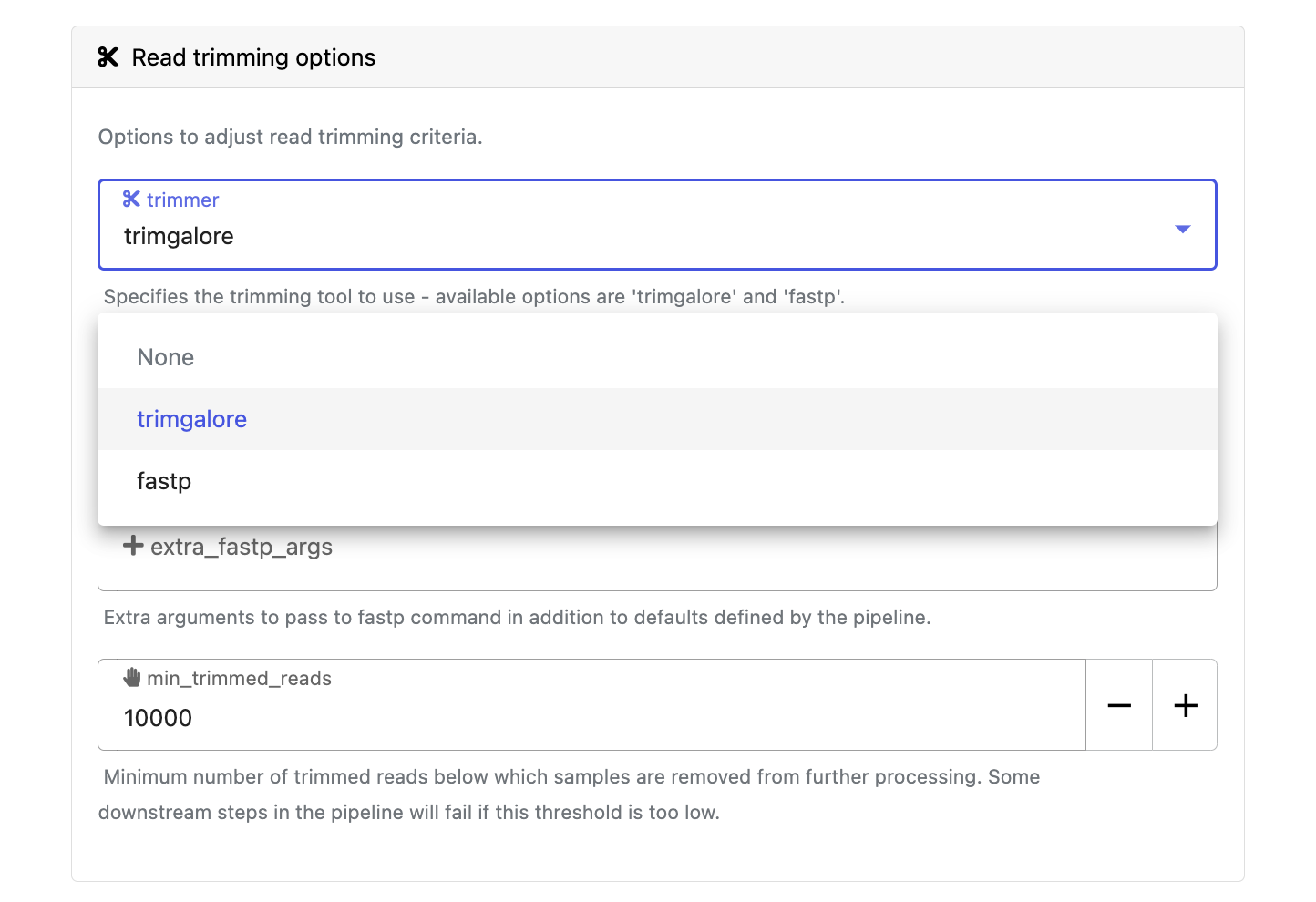
Modify other parameters to customize the pipeline execution through the parameters form. For example, in nf-core/rnaseq (version 3.15.1), change the trimmer under Read trimming options to fastp instead of trimgalore.
Advanced settings
Configure optional run settings before you launch:
- Use resource labels to tag the computing resources created during the workflow execution. While resource labels for the run are inherited from the compute environment and pipeline, workspace admins can override them from the launch form. Applied resource label names must be unique.
- Use Pipeline secrets to store keys and tokens used by workflow tasks to interact with external systems. Enter the names of any stored user or workspace secrets required for the workflow execution.
- See Advanced options for more details.
After you fill in the launch details, select Launch. The Runs tab shows your new run in a submitted status at the top of the list. Select the run name to open the View Workflow Run page, where you can view the configuration, parameters, status of individual tasks, and run report.