Monitor runs
Track the status of your pipeline runs in one workspace, or across every workspace you can access.
Platform has three views for monitoring runs:
- The Runs page lists the runs in one workspace.
- The All runs page lists runs across all your organizations and workspaces.
- The Dashboard counts runs by status across all your organizations and workspaces.
You need the following:
- An organization and workspace. See Set up your workspace.
- At least one pipeline run in your workspace.
Monitor runs in a workspace
In your workspace, select Runs. Each row shows one run and its status.
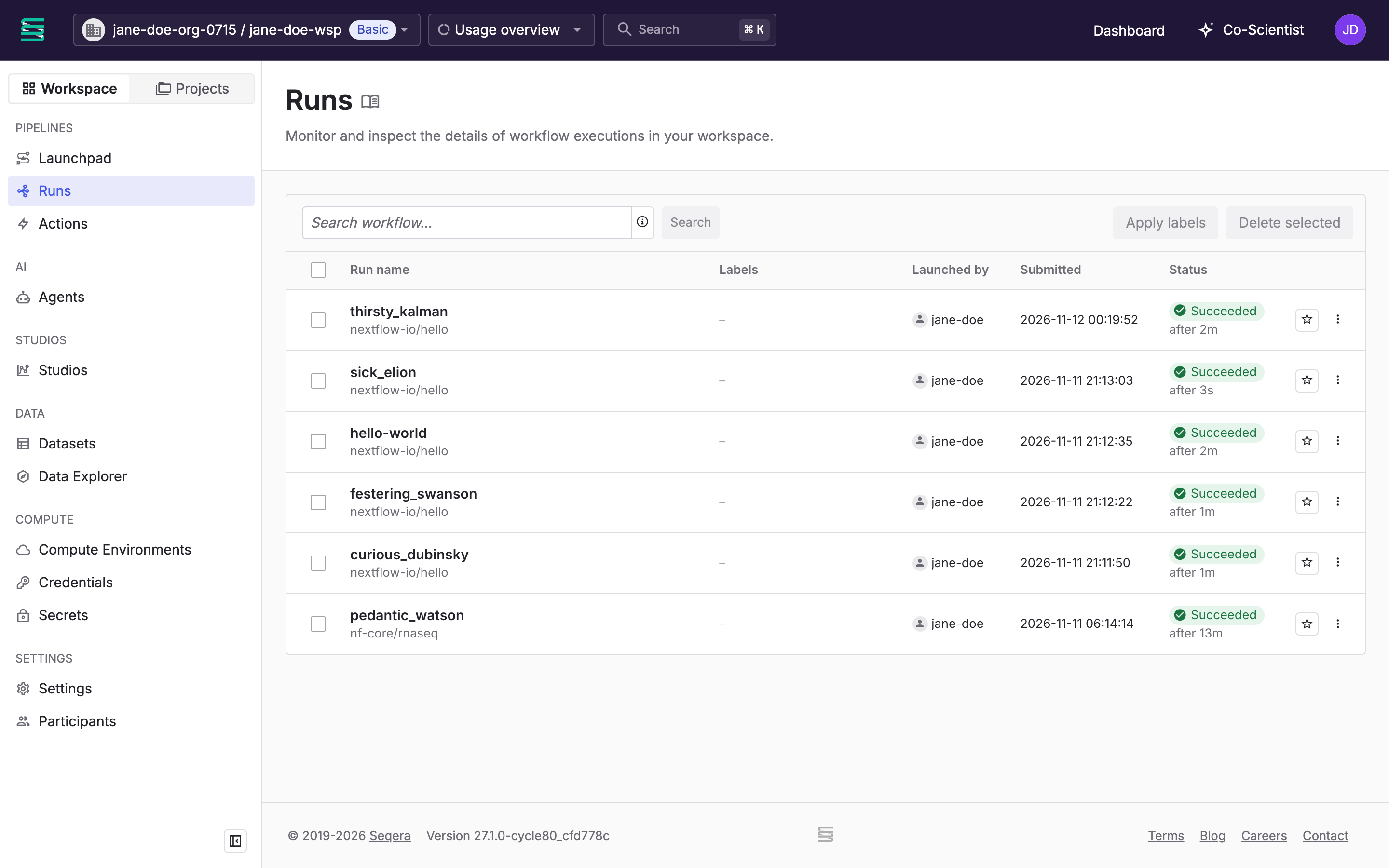
Select a run name to open its run details, such as its tasks, metrics, logs, and outputs.
Monitor runs across workspaces
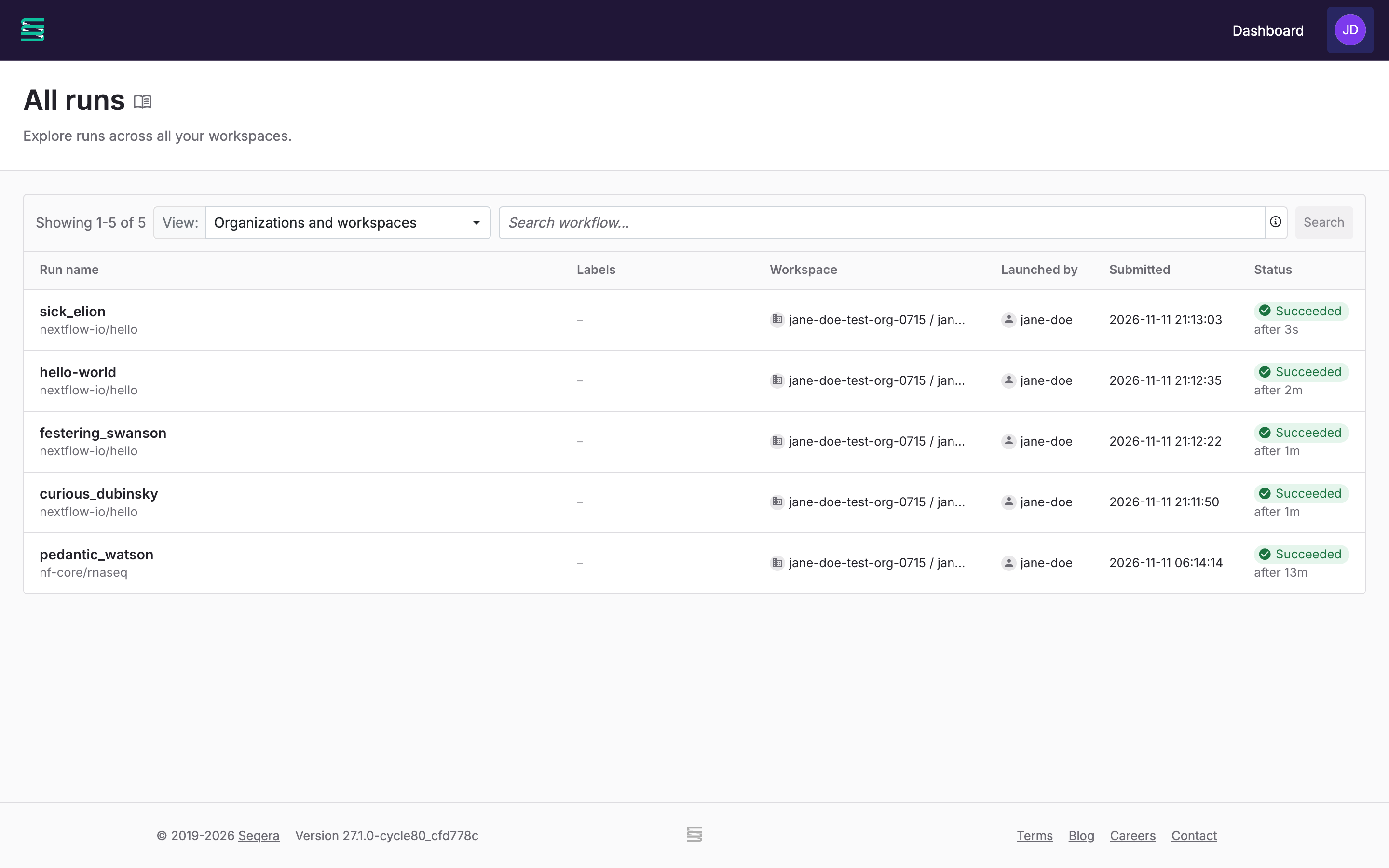
To view runs from every workspace you can access, select your avatar in the top right, then select All runs. To show only some workspaces, select the drop-down next to View.
Filter the list by entering text and keyword:value terms in the search field. For example, to list the successful rnaseq runs that jane-doe launched after January 1, 2026:
rnaseq username:jane-doe status:succeeded after:2026-01-01
Text matches part of the run name, pipeline name, or session ID. A keyword:value term must match exactly. See All runs view for every keyword.
View run totals on the Dashboard
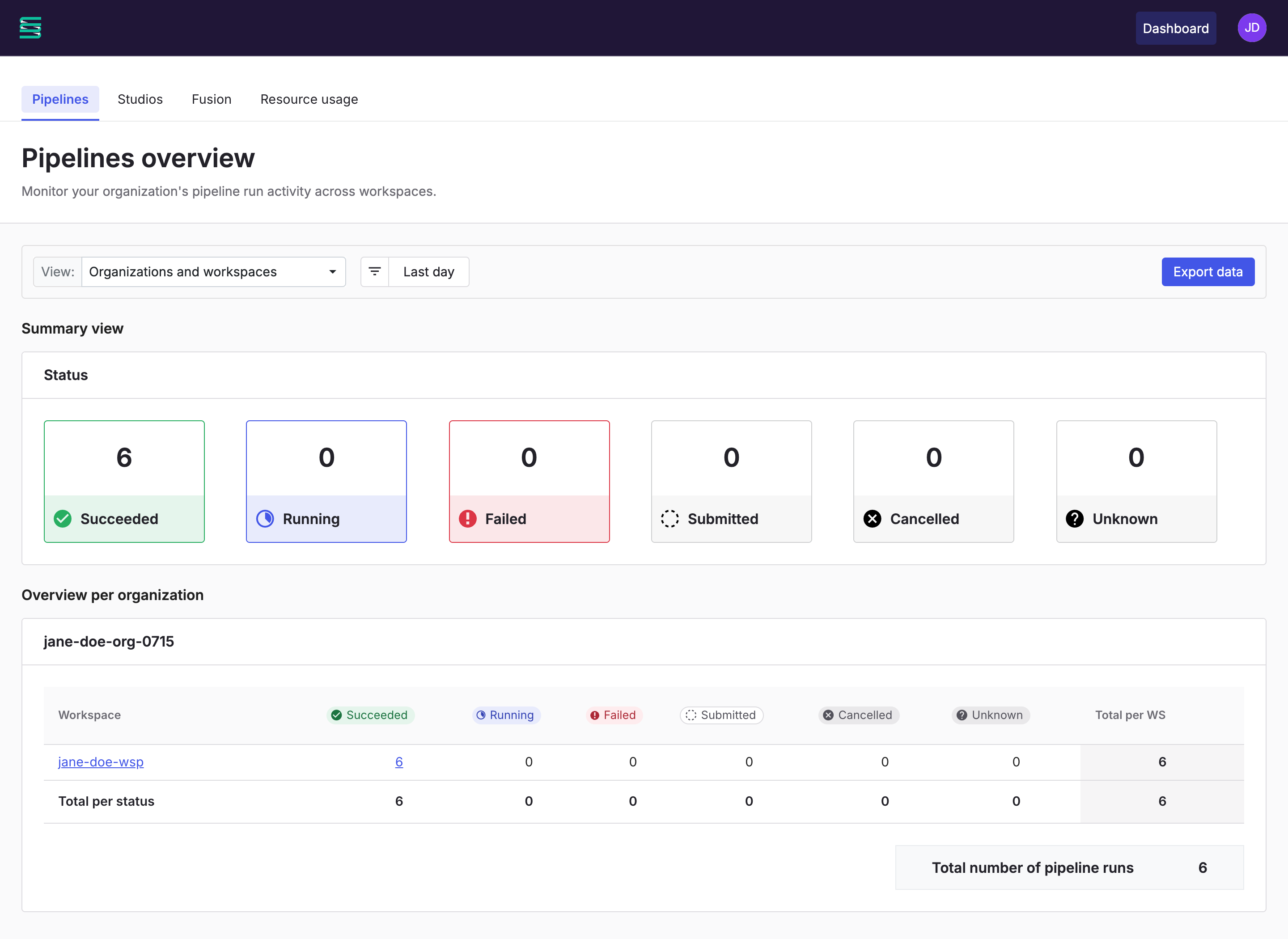
To count runs by status, select Dashboard in the top bar. The Pipelines tab shows run totals for each organization and workspace you can access:
- To show only some workspaces, select the drop-down next to View.
- To change the time period, select a preset or a custom date range of up to 12 months.
- To download the totals as a CSV file, select Export data.
The Studios, Fusion, and Resource usage tabs show usage for those features. See Dashboard.
Next steps
To launch and monitor runs from scripts and other tools, see Automation.