Set up your workspace
Create an organization and a workspace, then give people access to it directly or through teams.
A workspace holds the pipelines, compute environments, data, and runs that its participants share. Each participant has a role that controls what they can do in the workspace. You also have a personal workspace. To share resources and manage access, use an organization workspace.
You need the following:
- A Seqera Cloud account
When you sign up for Seqera Cloud with a verified work email, Platform creates an organization and a workspace for you. To share that workspace, skip to Add organization members.
Create an organization
An organization contains workspaces, members, and teams. You're the first owner of each organization you create. See Organizations for more information.
To create an organization:
- Select the organization and workspace drop-down in the top left, then select Add organization.
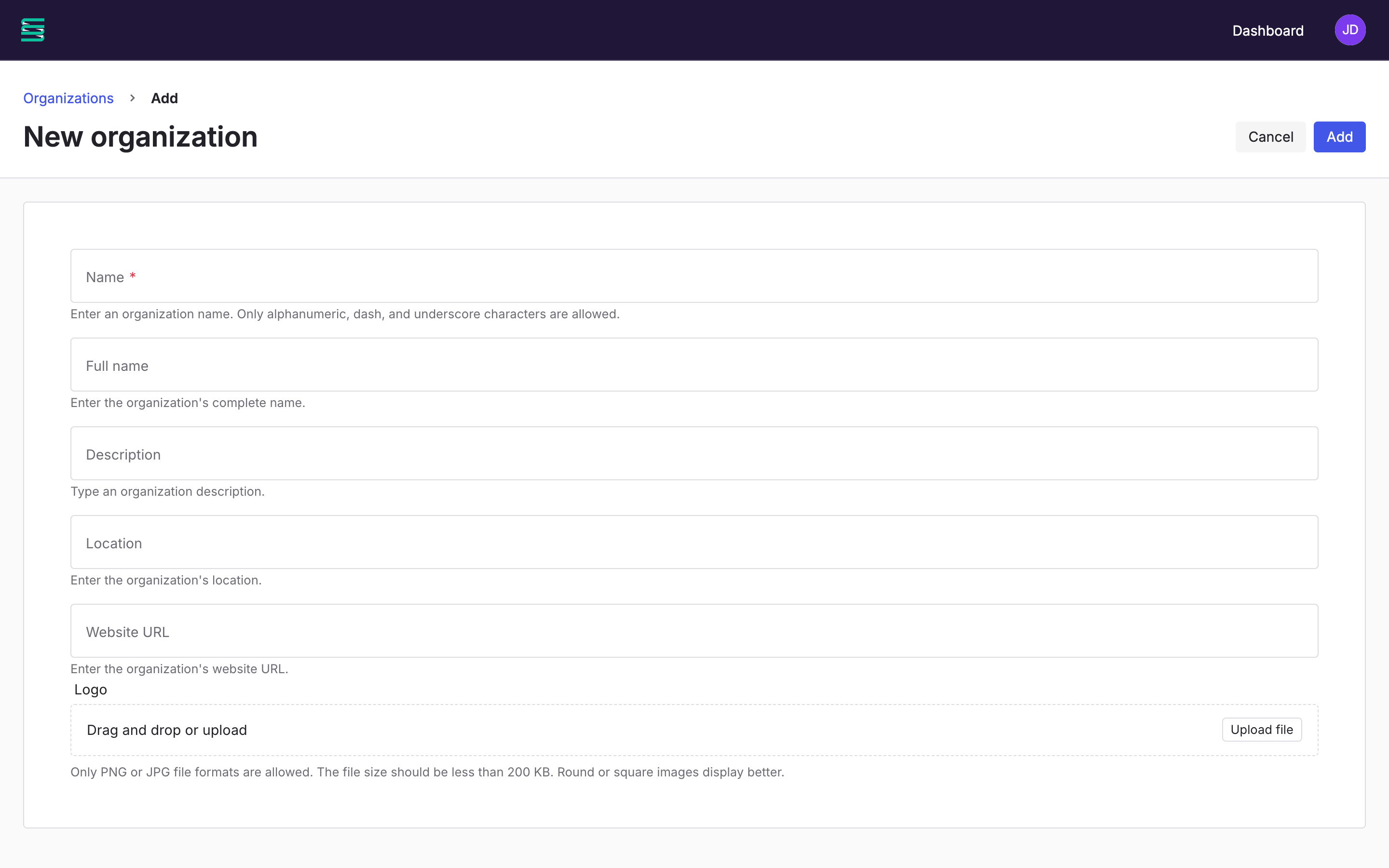
- Enter the organization details:
- Name: The organization name shown in Platform. Use only letters, numbers, dashes, and underscores.
- Optional: Full name, Description, Location, Website URL, and Logo.
- Select Add.
Create a workspace
An organization can contain several workspaces, for example one per team or project.
To create a workspace:
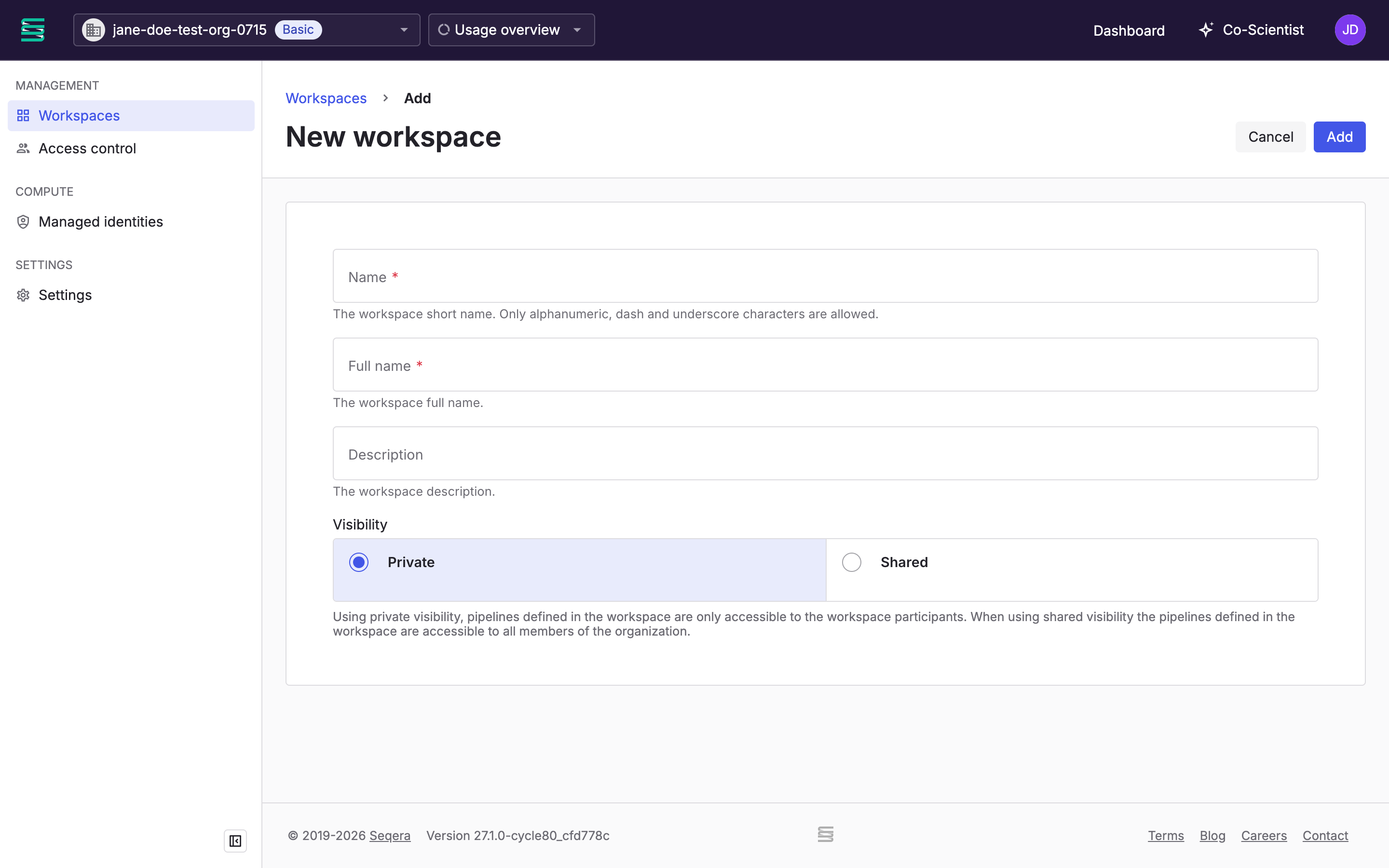
- On your organization page, select Workspaces, then select Add workspace.
- Enter the workspace details:
- Name: The workspace name shown in Platform. Use only letters, numbers, dashes, and underscores.
- Full name: A longer, descriptive name.
- Optional: Description.
- Visibility: Select Private to show the workspace pipelines only to its participants. Select Shared to show them to every organization member.
- Select Add.
Add organization members
You can add organization members to any workspace or team in the organization. To give someone access to one workspace only, add them as a workspace participant instead.
To add a member:
- On your organization page, select Access control.
- On the Members tab, select Add member.
- Enter the person's name or email address, then select Add.
Platform emails them an invitation.
Add workspace participants
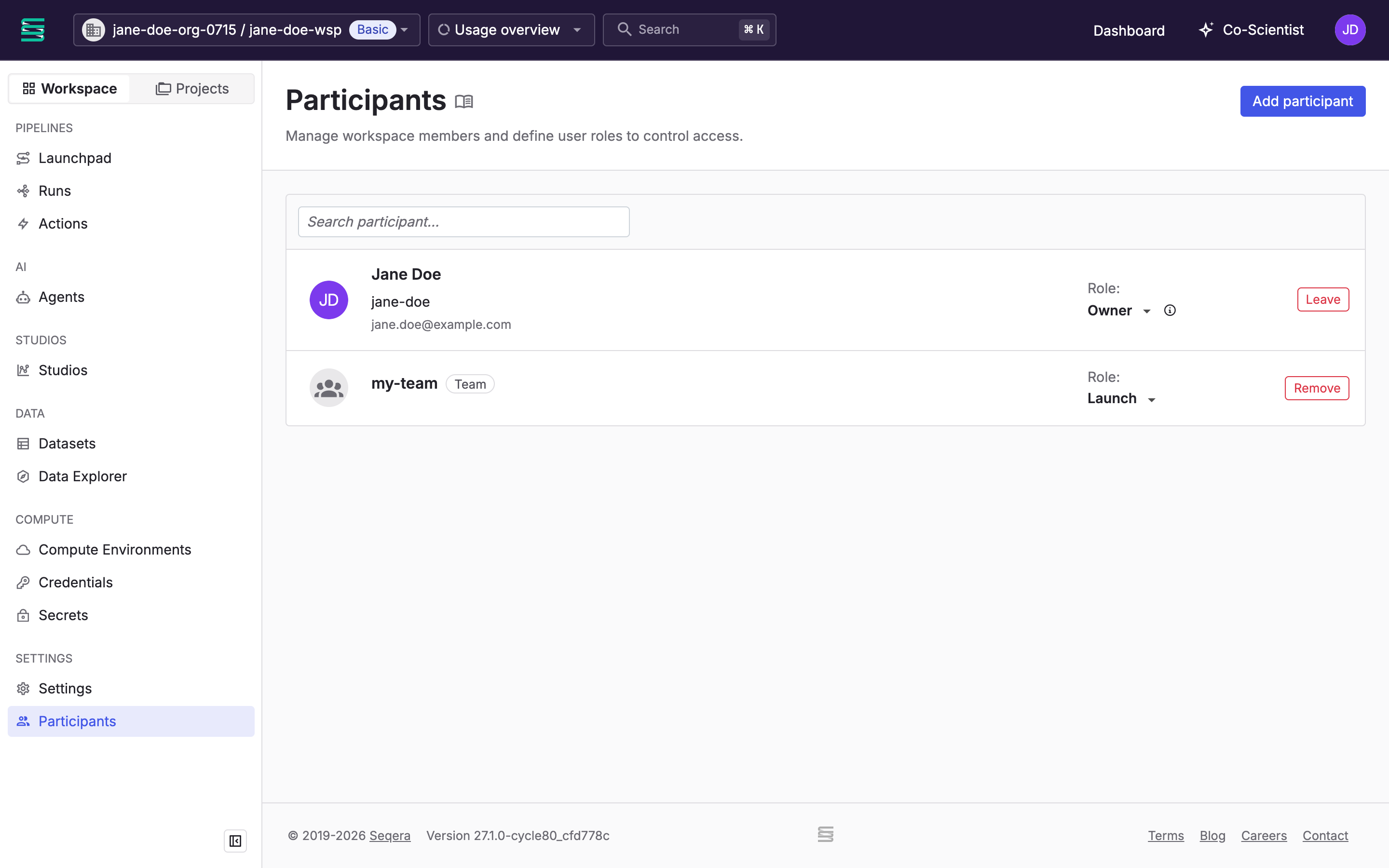
A participant can be an organization member, a team, or a collaborator. A collaborator is a Seqera user outside your organization who can access only the workspaces you add them to.
To add a participant:
- In the workspace, select Participants, then select Add participant.
- Enter a member or team name, or a Seqera user's email address, then select Add.
- Optional: Change the participant's Role from the drop-down. New participants get the Launch role. See Roles for what each role allows.
Manage access with teams
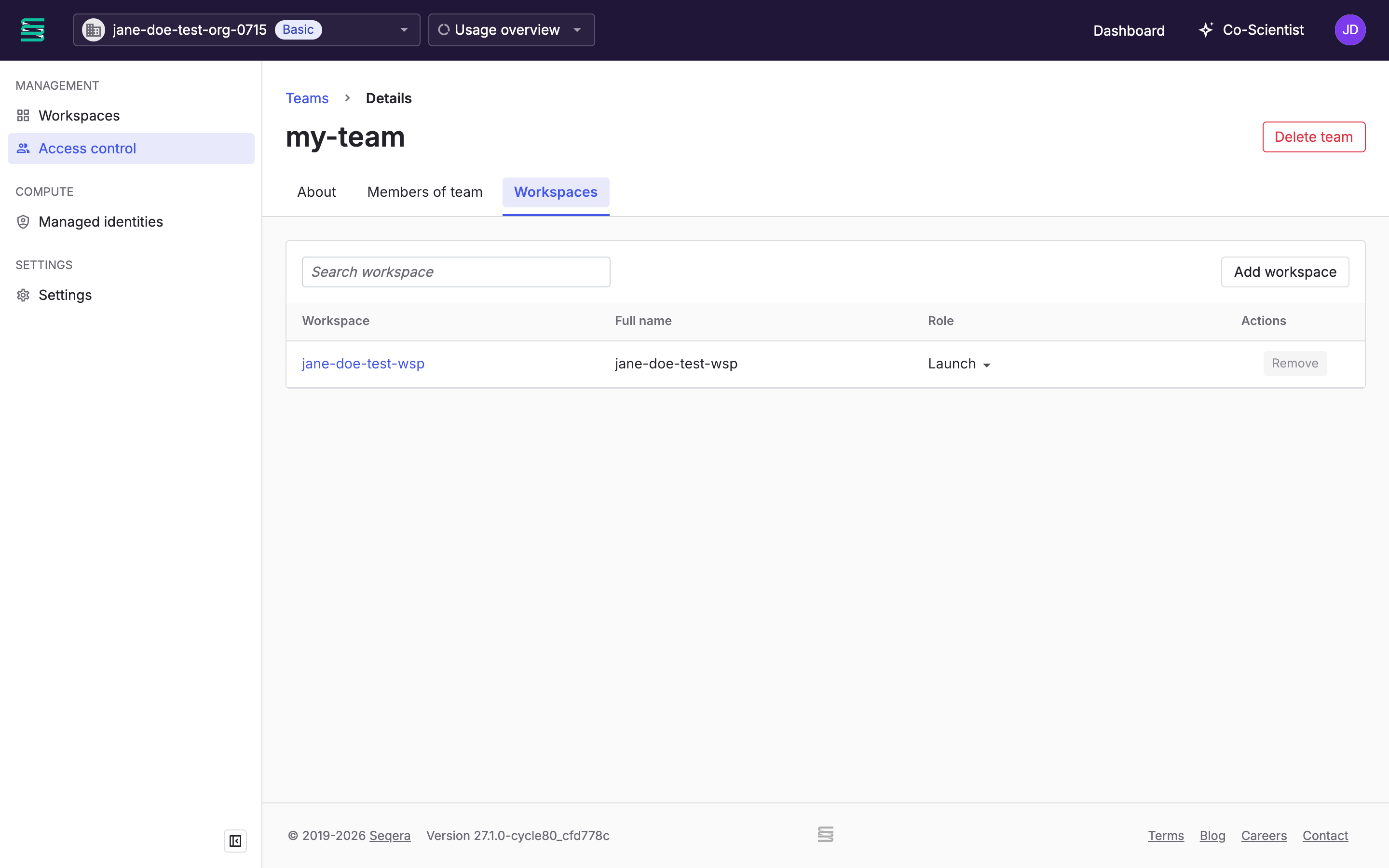
A team groups organization members. When you add a team to a workspace with a role, every team member gets that role in the workspace.
To create a team and add it to a workspace:
- On your organization page, select Access control, then select the Teams tab.
- Select Add team, enter a Name and an optional Description, then select Add.
- Select Edit next to the team.
- On the Members of team tab, add organization members by name or email address.
- On the Workspaces tab, select Add workspace, select a workspace, then select a Role.
Next steps
Your workspace is ready for pipelines:
- Add pipelines to the workspace Launchpad.
- Add data for your pipelines to use.